Ordering instructions
A short guide to ordering from COPA Kitchen: the ordering window, pickup choices, checkout, and why an account helps.
1 Check the ordering window
On the home page, the About section shows live dates in US Central Time: when orders close for the next kitchen run, if checkout is temporarily locked after export, when checkout reopens, and which fulfillment week (Monday start) your order belongs to.
You can usually keep browsing and editing your cart during a lockout, but checkout stays closed until the time shown.
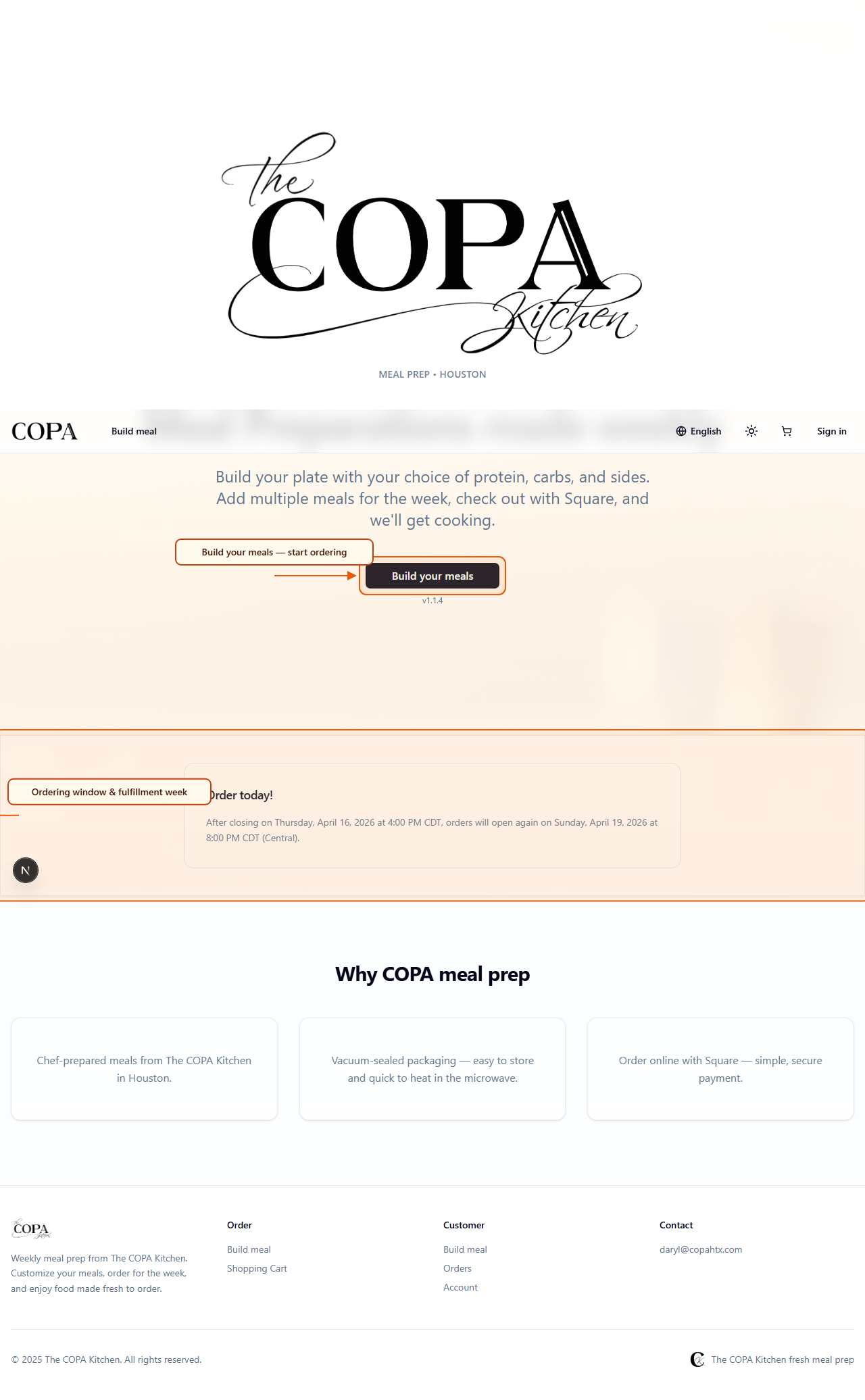
Home — ordering window and fulfillment week at a glance.
2 Build meals and add to cart
Use Build your meal to pick protein, sides, carbs, optional kitchen notes, and quantity. The Nutrition panel updates in real time from your selections for that single meal. Add each meal to your cart. You can also shop from product pages if you prefer.
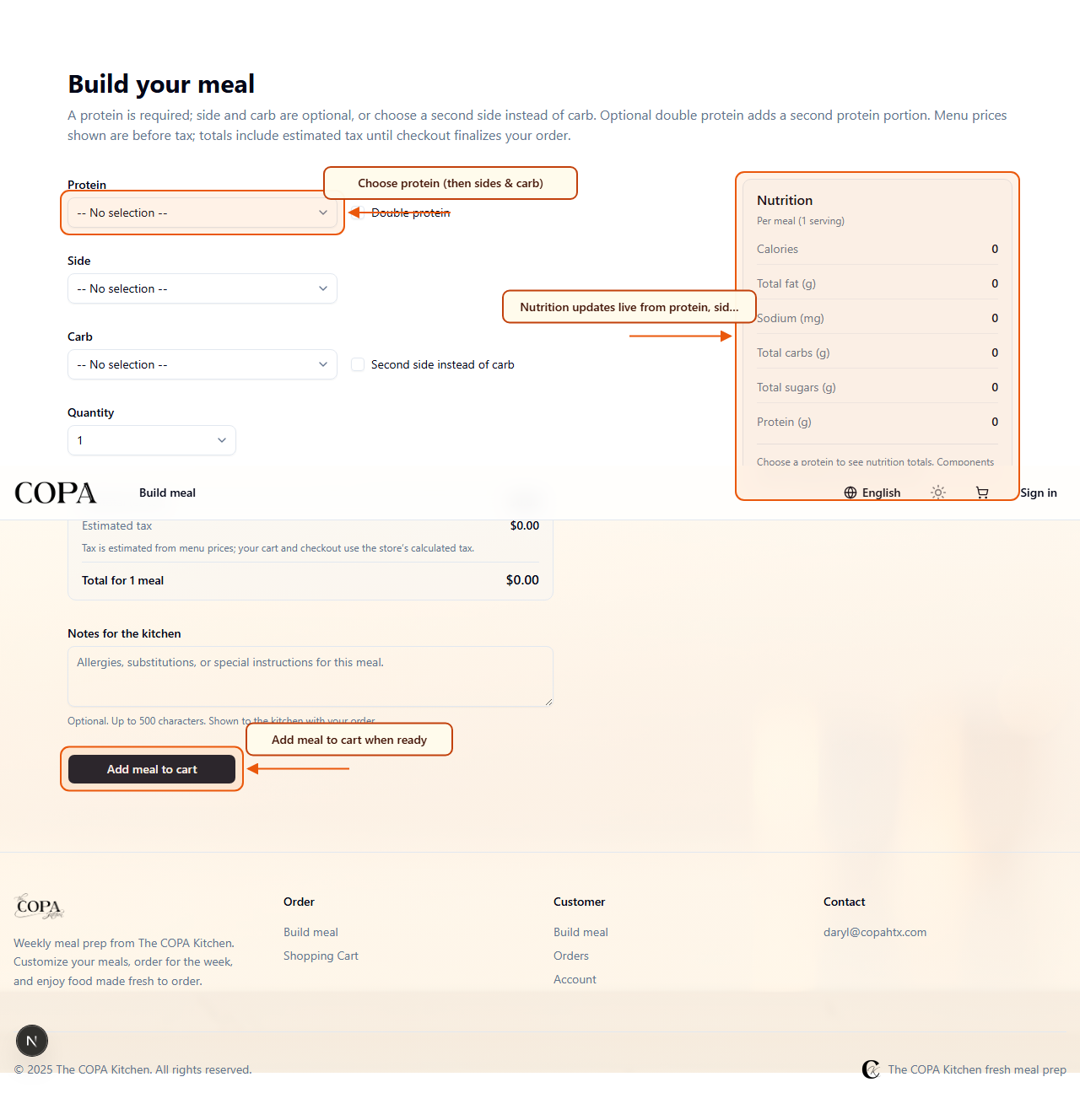
Meal builder — nutrition follows protein, sides, and carb; add to cart when ready.
3 Review cart and go to checkout
Open your cart to change quantities and confirm totals. When the ordering window is open, choose Proceed to checkout. If checkout is locked, the button stays disabled and a message explains when it opens again.
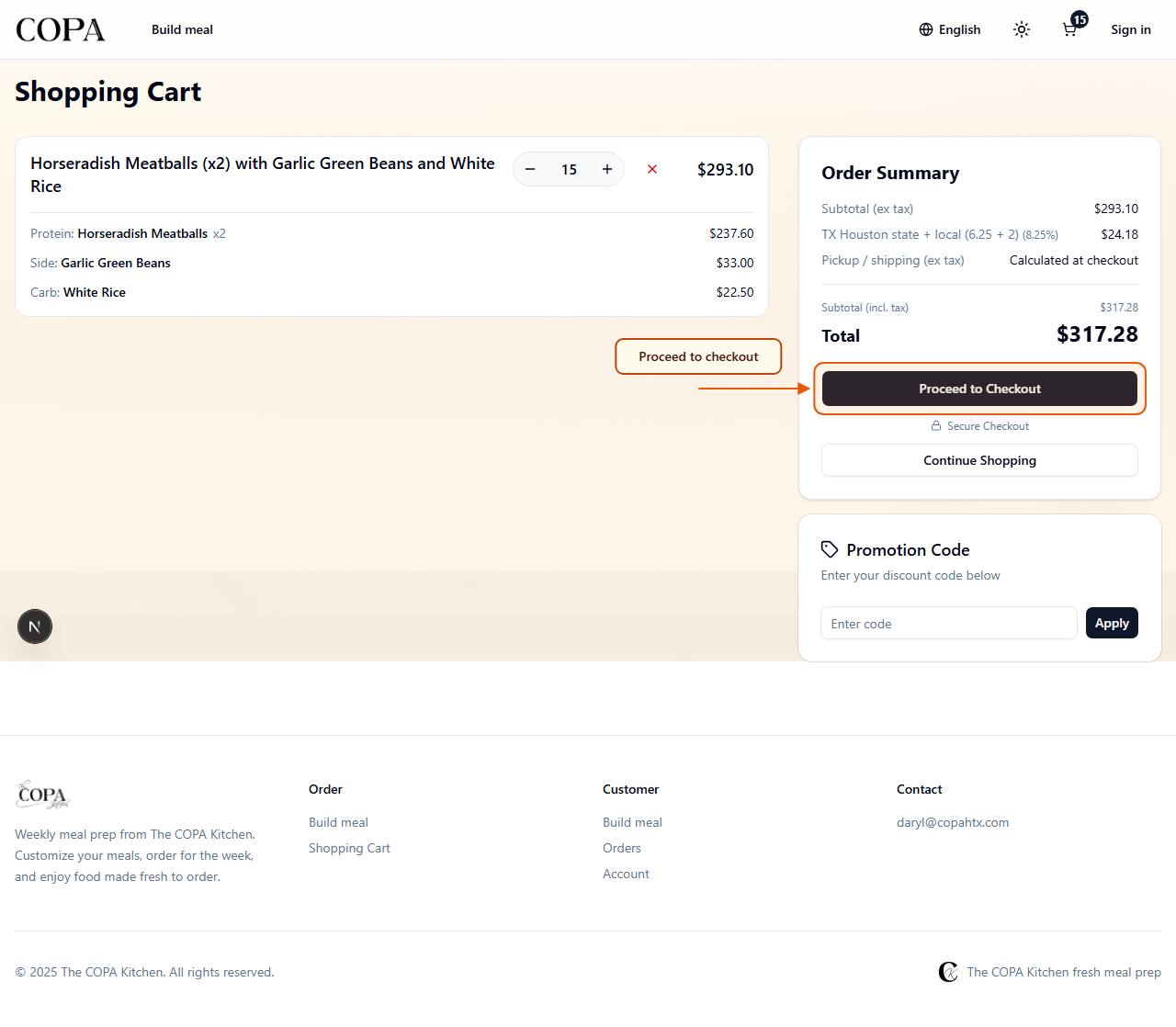
Cart — summary and checkout when the window allows it.
4 Pickup options (not shipped to your door)
Checkout offers pickup methods only. Pick the option that matches how you will collect your meals.
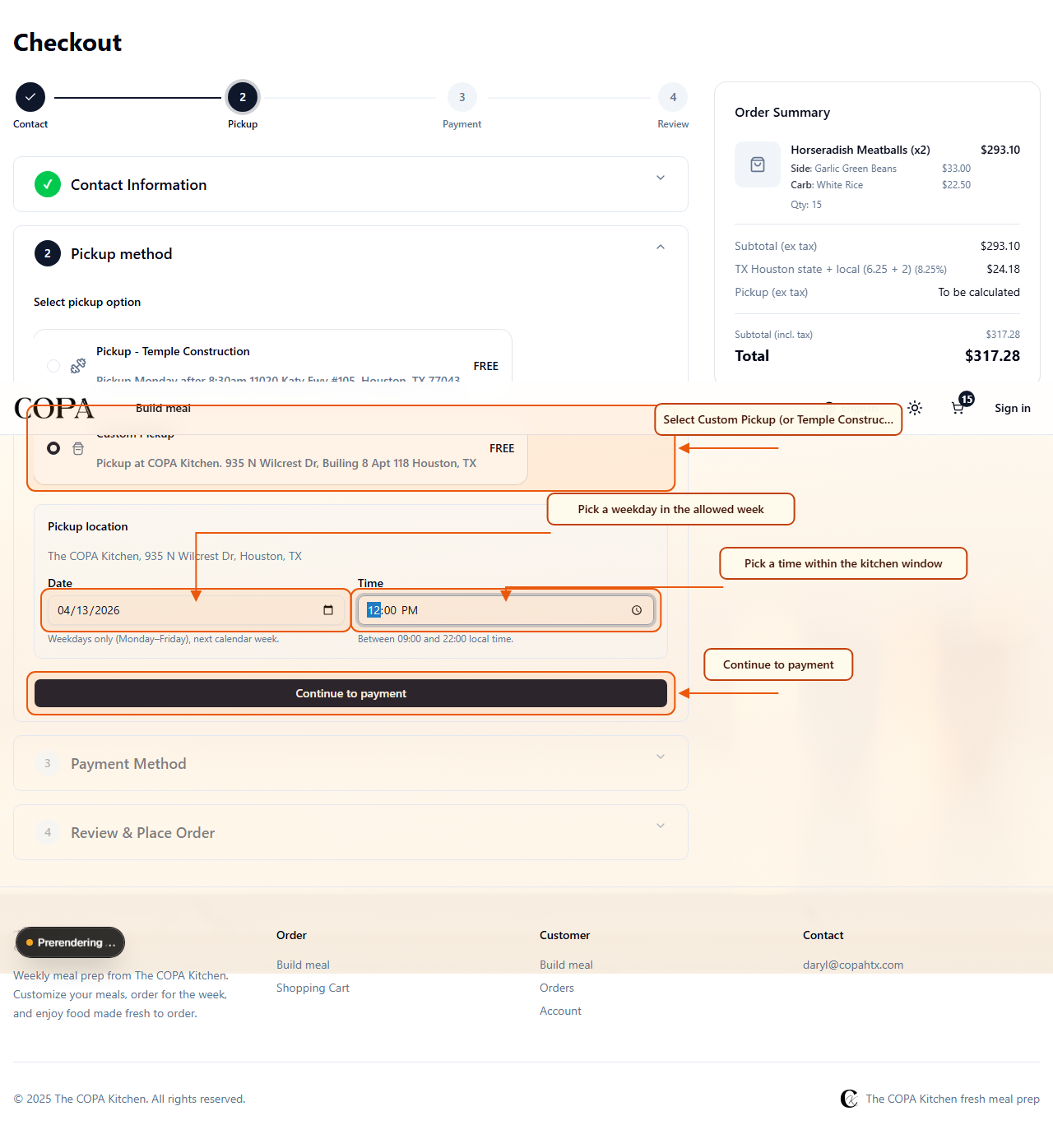
Checkout — pickup method and, for kitchen pickup, date and time slot.
5 Pay, billing if needed, then review
Complete Payment (for example Square or PayPal, depending on store setup). Some wallets may ask for billing address after payment. Finish on Review & place order and keep your confirmation code.
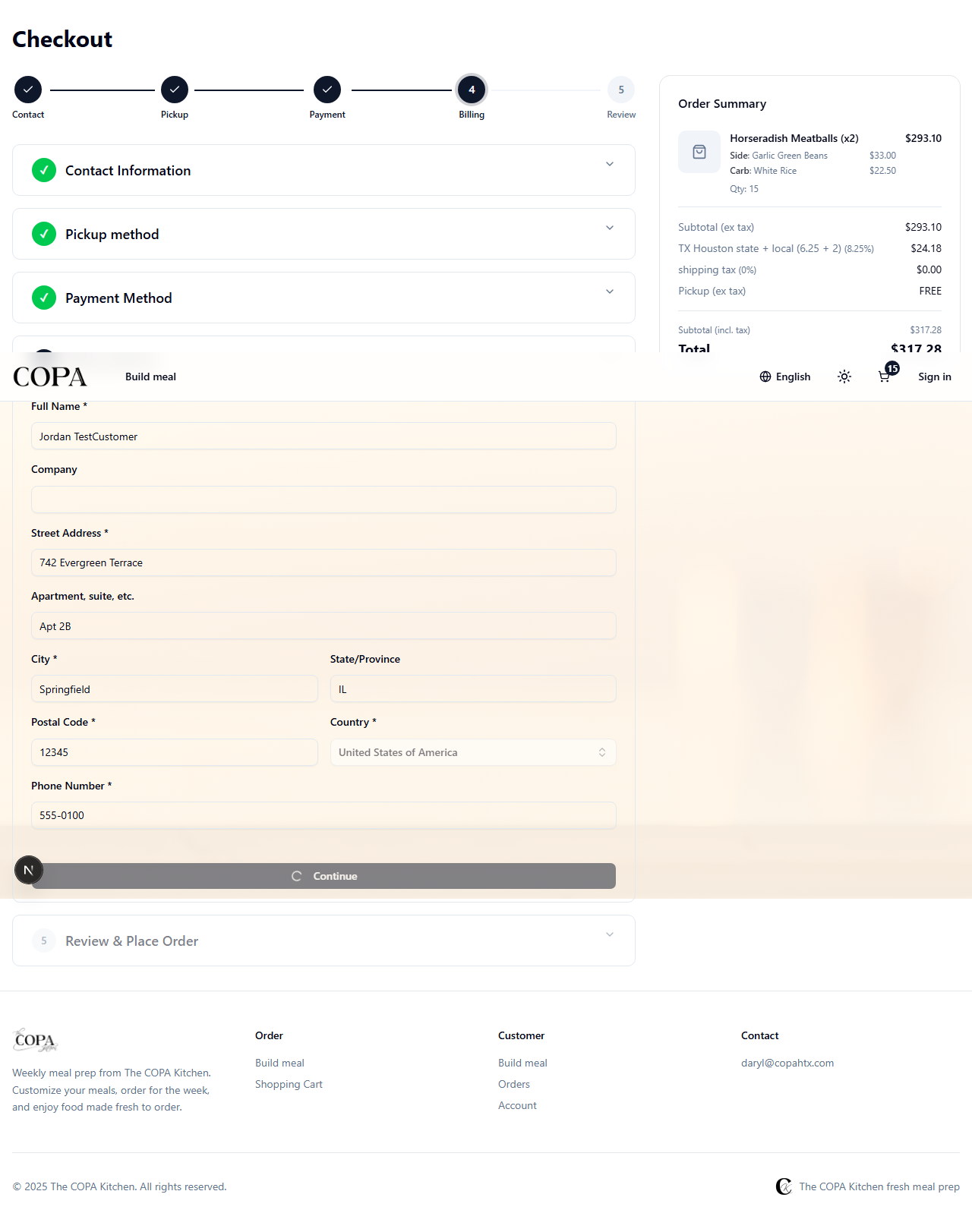
Review — confirm pickup, totals, and place the order.
6 Create an account for next time
Registered customers get a quicker path through checkout (no guest contact step), saved addresses where the flow needs them, and an order history you can open to see exactly what you ordered. Use product links from past orders to rebuild favorites in the meal builder.
Promotions and offers depend on how the kitchen runs coupons and email campaigns; your account is still the best place to track receipts and pickup details.
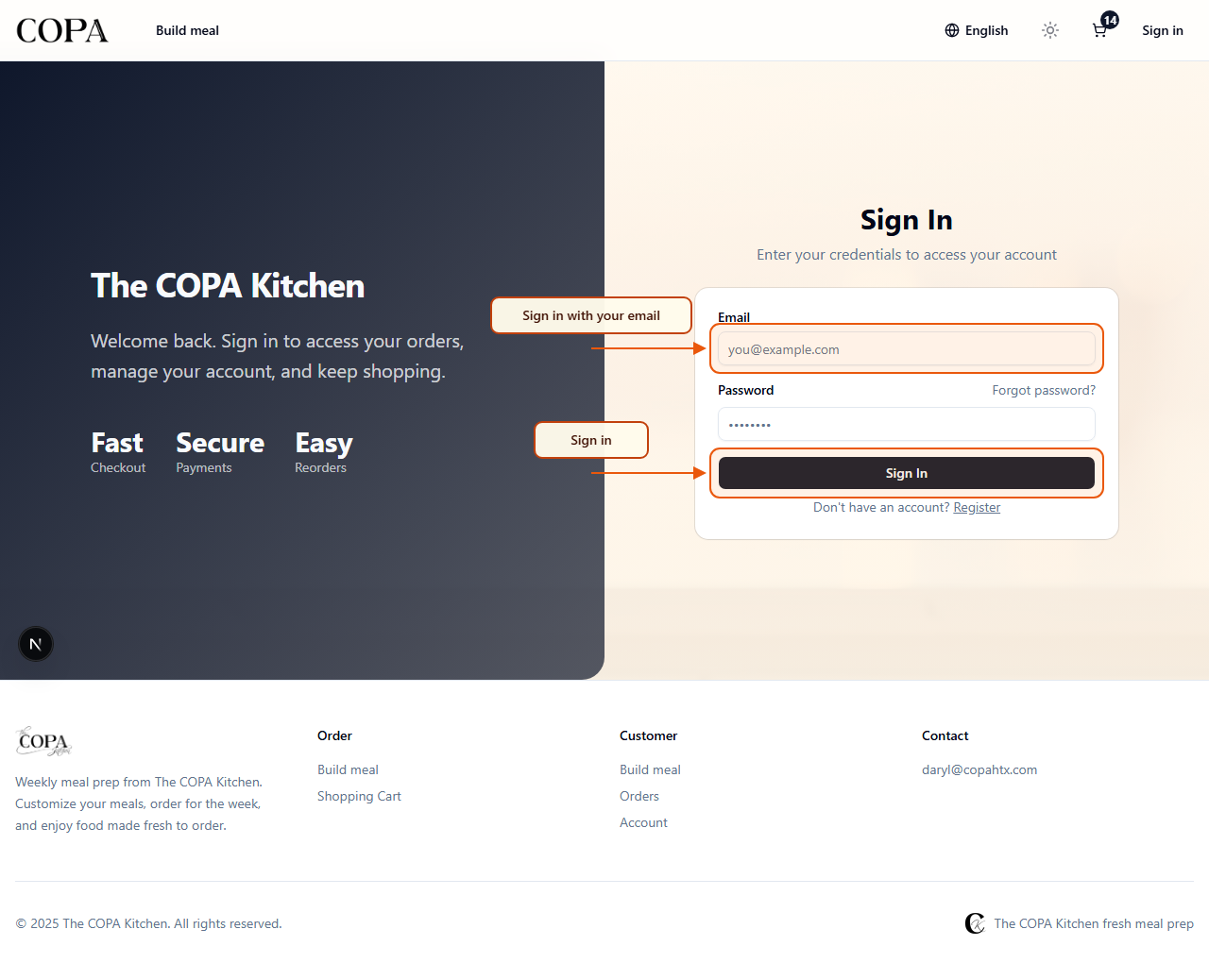
Account — open My Orders to see past purchases and reorder favorites.
· Quick reference
| Topic | What to remember |
|---|---|
| Ordering window | Central Time deadlines; lockout pauses checkout until reopen. |
| Fulfillment week | Shown on home; orders in the window apply to that Monday week. |
| Custom kitchen pickup | Next week Mon–Fri only; 9:00–22:00; Wilcrest address. |
| Guest checkout | May be disabled; you would sign in or register instead. |